
Notes
How to Use Google Search Console So It Actually Tells You Something Useful
Google Search Console is free. It is also Google's own record of how your site shows up in Google Search, and no outside tool can fully copy that. Plenty of people open it once, see a wall of charts, and never come back.
Reviewed by Melike Erguven, Co-founder of LocalLeadSignal · September 28, 2026 · 9 min read

Google Search Console is free. It is also Google's own record of how your site shows up in Google Search, and no outside tool can fully copy that. Plenty of people open it once, see a wall of charts, and never come back. This guide is about how to use Google Search Console for the few decisions it is genuinely good at, and how to ignore the rest.
The short version? Four numbers. Two reports. One weekly habit.
What Search Console measures, and what Analytics never sees
Google Analytics starts counting when someone lands on your page. Search Console starts earlier, at the moment Google decides whether to show your page at all.
That makes it the only place to see these four numbers:
- Impressions: how often a page of yours appeared in Google results, clicked or not.
- Clicks: how often someone followed that result to your site.
- Click-through rate (CTR): clicks divided by impressions.
- Average position: where your result tended to appear, averaged across every search that showed it.
It also tells you which of your pages Google has indexed, which it has left out, and why.
Analytics cannot.
A page Google never indexed gets no visitors from search, and in Analytics that looks exactly like a page nobody wanted. Only Search Console can tell the two apart. If you want the background on how Google finds, stores and ranks pages in the first place, Google explains it plainly in How Search works. It is worth ten minutes before you open a single report.
The Performance report: filter first, then read
Open the Performance report and four totals sit across the top. Site-wide, they tell you very little. They average your best page with your worst, and your most valuable search with one nobody will ever type again.
So filter first. Pick one page or one query. Then read the numbers.
A few traps are worth knowing before you trust anything you see:
- Average position is an average. A page that sits first for a rare search and twentieth for a popular one can show up as tenth, which describes neither search. Filter to a single query before you rely on it.
- Your own search is not the report. What you see when you search from your office depends on where you are, your device and your history. Search Console reports what searchers saw across the whole date range. The two rarely match, and that is normal.
- The newest days are still filling in. Do not react to a dip in the last two days of the chart.
- Short windows mislead. Compare the last 28 days with the 28 before, or three months with the three before. One week against the next mostly shows you which week had a holiday in it.
Four patterns in the Queries tab, and what each one asks of you
The Queries tab is where Search Console starts to earn its keep. Sort by impressions and you get a list of what people actually typed before your page appeared, which is often not what you wrote the page for.
Look for these four patterns:
- Many impressions, low CTR. People see you and scroll past. That is usually a title or meta description problem, not a ranking problem, so rewrite the snippet before you touch the page.
- Healthy CTR, position roughly 8 to 20. The people who see you click, but not enough people see you. These pages are close, and a more complete answer is often what moves them onto page one.
- Impressions sliding for three months. Google still considers the page relevant, but something else is winning. That calls for a refresh, not a rebuild, and our guide to refreshing an underperforming blog post walks through it step by step.
- A query you never targeted. Google thinks you are relevant for something you never set out to rank for. Sometimes that is noise. Sometimes it is a page you are missing.
That last one happened to us.
In Search Console, "local seo audit" was the search that most often showed our site. We had no page built for it. So we built a free local SEO audit page. We did not have to guess what to build, because the query list had already told us. We wrote about that, and the other lessons from running LocalLeadSignal on our own website, in more detail.
One caution before you copy that move: check that people really search for the phrase. A query with no measurable search volume is not a missing page. It is a curiosity. Our guide to local keyword research shows how to check demand before you build anything.
The Pages report: can Google actually see your site?
The Pages report, under Indexing, sorts every URL Google knows about into two groups. Indexed. Not indexed. Each page in the second group comes with a reason, and the reason is what you act on.
Several reasons are exactly what you asked for:
- Excluded by a noindex tag. You told Google to skip the page. Fine, if you meant to.
- Blocked by robots.txt. Same idea, set in a different file.
- Alternate page with proper canonical tag. Google found a duplicate and indexed the version you pointed it to.
Others deserve a closer look:
- Not found (404) or server error (5xx). Google tried the address and failed. If other pages link there, those links now lead nowhere.
- Crawled, currently not indexed. Google read the page and chose not to include it for now. Often the page is thin, or too close to another page on the same site.
- Discovered, currently not indexed. Google knows the address exists but has not fetched it yet.
On a small service site, the most common cause is simpler than any of these: a page with no path to it. It is missing from the sitemap, and nothing else on the site links to it. Submitting a sitemap in the Sitemaps report helps Google find it, and Google's own sitemaps overview explains what a sitemap does and what it does not do.
Internal links matter just as much. They tell Google which pages you consider important.
How to use Google Search Console to decide what to fix next

The most useful view in the whole tool sits two clicks deep:
- Open the Performance report.
- Click the Pages tab and choose one address.
- Switch to the Queries tab.
Now you see every search that showed that one page. Read it slowly, because it is the gap between what you wrote and what people looked for.
A service page that appears only for "what is" and "how does" questions is answering curiosity, not buying intent. Adding the plain answers a ready-to-hire customer needs (what it costs, how long it takes, what happens at the first visit) often closes that gap faster than a full rewrite. Longer, more specific searches are also where a small site tends to win first, which our post on long-tail local keywords covers in depth.
Two more reports belong in this step:
- Links. Under internal links, Search Console lists how many links from your own site point to each page. A strong page with almost no internal links is easy to overlook, for readers and for Google. Link to it from two or three related pages and watch its impressions over the next few months.
- Enhancements. If your site uses structured data, these reports show whether Google can read it. A redesign can break markup without anyone noticing, and this is where the break shows up. Google's introduction to structured data explains what the markup is for, and our guide to schema markup for healthcare and legal practices covers the types local practices use most.
What Search Console cannot tell you
It is a good tool. It is not a complete one.
- Searches where you never appeared. If you do not show up for a topic, there is no zero next to it. There is nothing, and that silence looks the same as "no problem".
- Your competitors. You see your own impressions and clicks. Never theirs.
- AI answers outside Google Search. Google counts appearances in its own AI features, such as AI Overviews, inside your overall Search numbers, without showing them as a separate line. Assistants like ChatGPT or Perplexity do not appear in the report at all.
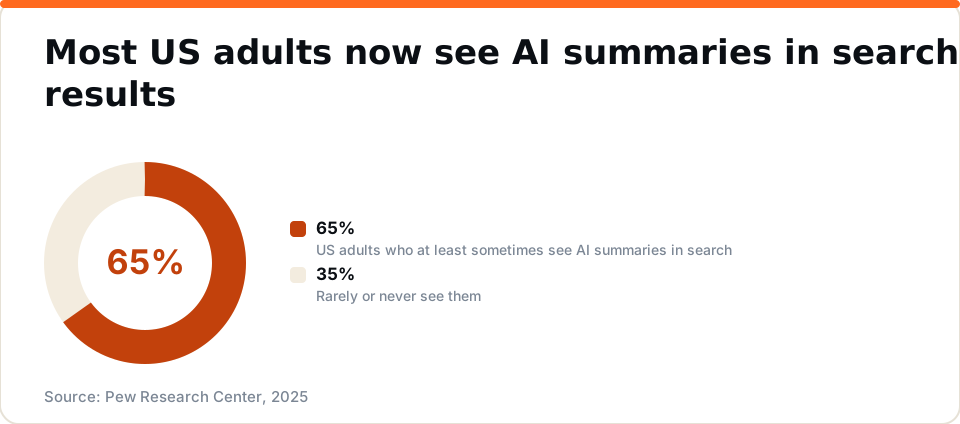
That gap matters more every year. The Pew Research Center found that Google users are less likely to click on links when an AI summary appears in the results. A page can hold its position and still earn fewer clicks.
We see this gap on our own site. Since June 2026 we have run LocalLeadSignal on our own website the same way it runs for our customers, including weekly checks that ask AI assistants which businesses they recommend. Over the summer, more assistants named us when asked about LocalLeadSignal directly. For buyer questions, they still recommended older, established brands.
None of that shows up in Search Console. It cannot.
If this part matters for your business, start with our guide to AI visibility for local businesses.
A weekly routine that fits in fifteen minutes
Understanding every report is optional. Opening it on a schedule is not.

Here is a routine a business without a marketing team can actually keep:
- Every week, about 5 minutes: Performance. Compare the last 28 days with the 28 before. Note any query or page that moved a lot, up or down.
- Every week, about 3 minutes: Pages. Look for new reasons in the not indexed list, especially errors.
- Every week, a minute or two: URL Inspection. For each page you changed, inspect the address and request indexing. That asks Google to crawl it again; it does not promise a date.
- Once a month: four numbers. For your most important pages, copy impressions, clicks, CTR and average position into a simple sheet. After six months, the trend is hard to miss.
- Once, at setup. Link Search Console to Google Analytics 4, so you can follow a visitor from the search they typed to what they did on your page. And make sure its email notices reach an inbox someone reads, because that is how Search Console tells you about new issues.
That is the whole routine. Fifteen minutes.
Source: Pew Research Center, 2025
Where to start
Do not try to learn every report at once. Knowing how to use Google Search Console well mostly means watching the same few numbers until a change stands out, and knowing what you will do when one does.
If you would rather see where your site stands first, run our free local SEO audit. It measures what is there today and promises nothing about tomorrow. Our walkthrough of what a local SEO audit actually looks at explains each check. Then open Search Console, filter to your most important page, and read its queries.
That is where the useful part begins.
Frequently asked questions
- How long does it take for Google Search Console to show data after I set it up?
- Data usually starts to appear within a few days of verifying your site. Give it a few weeks before you draw conclusions, because short date ranges mislead and the newest days in each report are still filling in.
- What is the difference between impressions and clicks in Search Console?
- An impression is counted each time your page appeared in a Google result, whether or not anyone clicked it. A click is counted when someone followed that result to your site. Impressions show reach; clicks show the visits search actually sent you.
- Why is a page on my site showing in Search Console but not ranking on the first page?
- Google considers the page relevant to the search but not the best answer yet. Common causes are thin content, few internal links pointing to the page, or another page that answers the same question more completely. Filter the Performance report to that page and read its queries to see which searches it is closest on.
- Does Google Search Console show how my business appears in AI search results?
- Partly. Google counts appearances in its own AI features, such as AI Overviews, inside your overall Search numbers, but it does not report them as a separate line. Assistants outside Google Search, such as ChatGPT or Perplexity, do not appear in Search Console at all, so tracking them needs separate monitoring.
- How often should I check Google Search Console for my small service business?
- Once a week for about fifteen minutes is enough for most small service businesses. Check the Performance report for queries or pages that moved, check the Pages report for new errors, and inspect any page you changed that week.
See where your own business stands.
We measure your local rankings, your listings, your website, and how AI assistants answer for your business. No signup required.
Or jump straight to pricing →